
How to Automate Outlook Invoice Collection
Automate invoice collection from Outlook and Microsoft 365 with a controlled review workflow, local mailbox scanning, and clean bookkeeping exports.
An Outlook invoice rule can move supplier emails into a folder, but it does not verify the attachment, extract bookkeeping fields, or show which documents still need attention. A complete workflow combines mailbox organization with document review and a tested accounting handoff.
This guide applies to Outlook.com and Microsoft 365 mailboxes used by founders, operations teams, and small finance departments.
Map the Microsoft 365 Mail Flow First
Before connecting any automation, document how invoices reach the business:
- A personal Outlook inbox
- A shared finance or accounts mailbox
- Aliases that deliver into another account
- Messages forwarded by employees
- Rules that move supplier mail into folders
- Portal notifications that contain links instead of attachments
This map prevents a common failure: connecting one inbox while invoices continue to arrive in an unmonitored shared mailbox or folder.
Choose the Right Connection Method
Invoice Radar supports Microsoft OAuth and standard email connections from the desktop app. With Microsoft OAuth, the connection is made directly between the app and Microsoft. Email scanning runs locally, and the email content does not pass through Invoice Radar's servers.
Microsoft 365 organizations may require an administrator to approve the requested mailbox access. If the connection reports that admin approval is needed, use the administrator workflow documented in the email collection guide rather than repeatedly reconnecting the account.
Configure Folders Without Hiding Exceptions
Folder selection reduces noise, but existing Outlook rules can also hide invoices from a narrow scan. Start with a representative mailbox period and compare the automated results with the messages your finance team handled manually.
A safe rollout looks like this:
- Connect one mailbox.
- Include the inbox and existing invoice folders in the first scan.
- Review results from recurring suppliers.
- Identify missed forwarded messages and portal notifications.
- Narrow the folder scope only after the coverage is understood.
When several recipient addresses arrive in the same mailbox, recipient filtering can separate the finance workflow from unrelated messages.
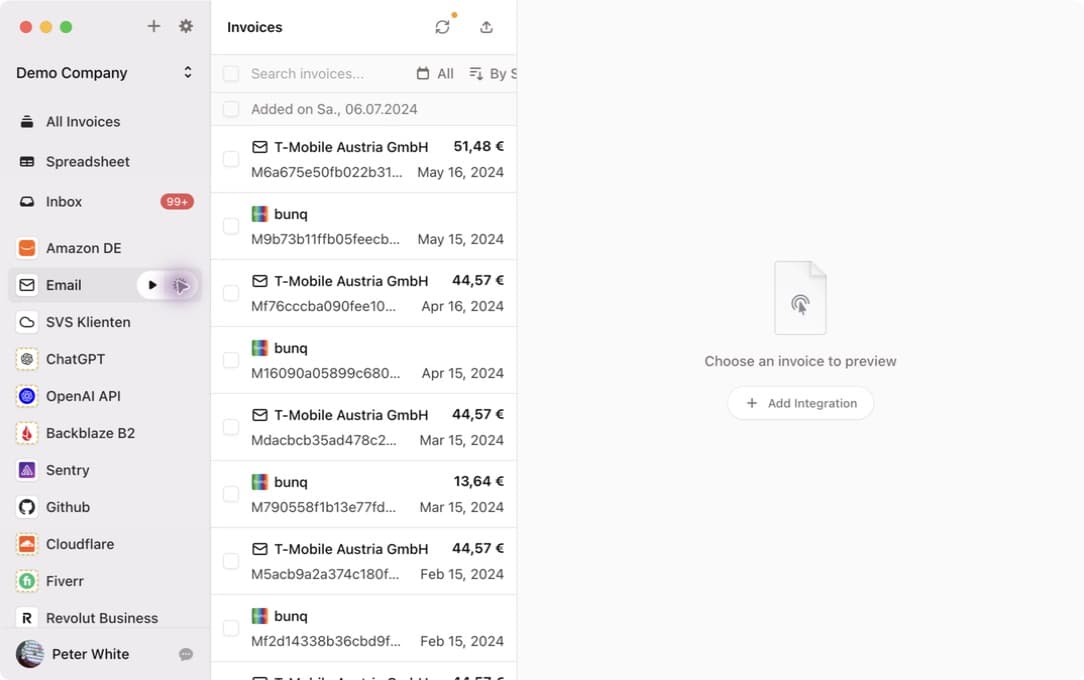
Review Extracted Invoice Data
Do not treat successful attachment detection as successful bookkeeping. Review the original document beside the extracted fields and check:
- Vendor and document type
- Invoice number
- Invoice date
- Currency and total
- Credit-note handling
- Duplicate copies from forwarding chains
Accept individual documents while testing. Use automatic acceptance for a sender only after its invoice format has produced consistent results.
Handle Portal Links and Missing Attachments
Some Microsoft 365 messages only announce that a new invoice is available. The PDF remains behind a supplier login. Track these cases separately because mailbox automation cannot extract a document that was never attached.
For suppliers that rely on portals, test login reliability, MFA handling, and recovery from layout changes. The GetMyInvoices alternatives guide explains when an email-first tool, portal collector, or heavier accounts-payable suite is the better fit.
Validate the Export With Your Accountant
Use the real month-end destination during the trial. Invoice Radar can export documents and metadata to folders, email, webhooks, and supported accounting services. Confirm the required file naming, folder structure, date range, and duplicate behavior before adding more mailboxes.
The accountant handoff checklist covers the review step, while the export documentation contains current destination setup instructions.
Run a Parallel Trial
Keep the existing process active for a representative billing cycle when practical and compare:
- Total documents collected
- Missed attachments and portal-only notices
- Duplicates
- Fields that needed correction
- Time spent on review
- Time needed to resolve connection or sender issues
This measures the workflow against your actual Microsoft 365 setup, not an idealized feature list. Invoice Radar's free trial has no time limit, so you can test for as long as your workflow needs. Exported documents contain a watermark during the trial, but collection, review, and handoff can still be tested end to end. If Gmail is also in scope, use the same test with the Gmail invoice collection guide.