
How to Automate Gmail Invoice Collection
Learn how to collect invoices from Gmail automatically, review attachments safely, prevent duplicates, and prepare clean records for bookkeeping.
Automating Gmail invoice collection should do more than move messages into a label. A useful workflow finds invoice documents, keeps the original attachment, makes uncertain results easy to review, and delivers accepted invoices into bookkeeping without creating duplicates.
This guide covers the decisions to make before connecting a Gmail or Google Workspace mailbox and a practical way to test the result.
What a Gmail Invoice Workflow Must Handle
Invoices do not always arrive as clean PDF attachments. Your mailbox may contain:
- PDF invoices attached directly to a message
- Receipts attached as images
- Invoice details written in the email body
- Notifications that link to a supplier portal instead of attaching a document
- Credit notes and corrected invoices from the same sender
- Forwarded messages from colleagues or shared billing addresses
Start by listing these sources. If many suppliers only send a portal notification, email scanning alone will not solve the full collection problem. Pair it with a portal workflow or a tool that can follow supported invoice links.
Connect Gmail Without Creating a Blind Spot
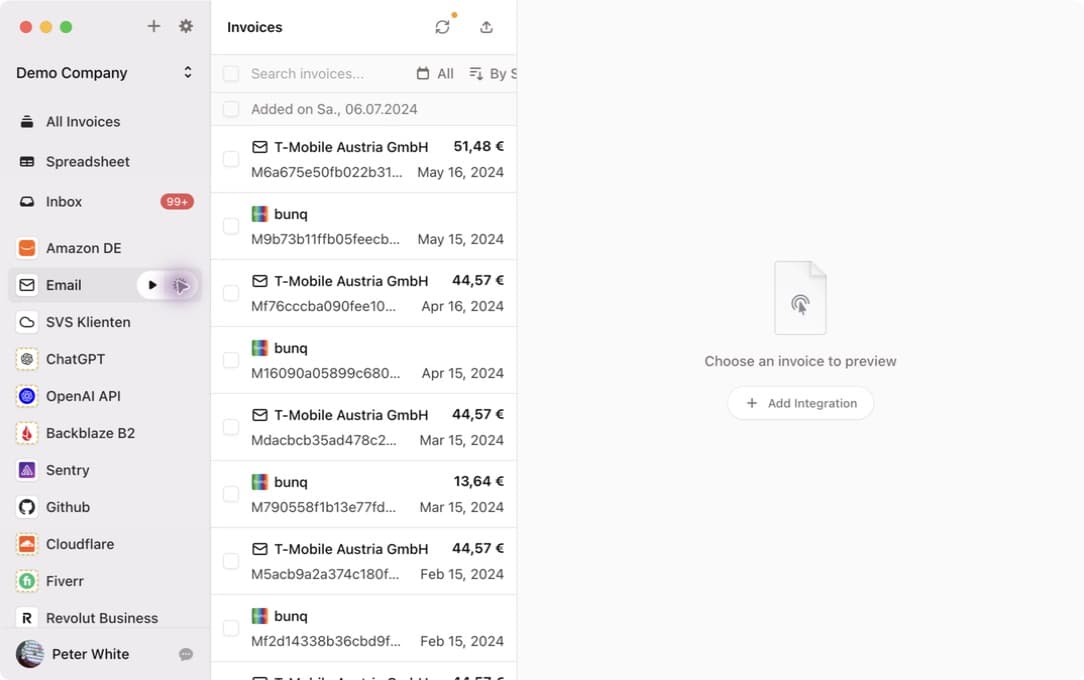
Invoice Radar connects to Google with OAuth. Authentication happens directly between the desktop app and Google, and mailbox scanning runs locally on your computer. The emails themselves are not uploaded to Invoice Radar; only accepted invoice attachments are saved.
The practical setup is:
- Connect the Google account from the Invoice Radar desktop app.
- Select the mailbox folders that contain supplier invoices.
- Scan a representative period before enabling a recurring workflow.
- Review the first result from every important sender.
- Trust a seller only after confirming that its invoices are identified correctly.
You can revoke the OAuth connection from your Google account settings. See the email collection documentation for the current connection and privacy details.
Use Folders and Recipient Filters Deliberately
Scanning every folder can produce noise, while scanning only the inbox can miss invoices moved by Gmail filters. Choose folders based on the way your organization already handles supplier mail.
Recipient filtering is useful when several addresses forward into one mailbox. For example, billing@company.com and receipts@company.com can share an account while only one address belongs in the bookkeeping workflow.
Do not make the initial filter too strict. Run a broad test first, inspect false positives and misses, and narrow the scope after you understand the real sender patterns.
Review Before You Automate Acceptance
The first scan is a calibration step. For each important supplier, verify:
- Vendor name
- Invoice or receipt type
- Invoice number
- Date and currency
- Total amount
- Correct source attachment
- Whether a corrected invoice replaces an earlier document
Invoice Radar lets you accept one invoice or trust the seller for future automatic collection. Start with individual acceptance for unusual senders, marketplaces, and forwarded messages. Trust recurring suppliers only after several correct results.
Prevent Duplicate and Missing Documents
A dependable process needs an exception list. During the trial, record:
- Duplicate invoices caused by forwarding chains
- Messages that contain multiple documents
- Portal notifications without an attachment
- Password-protected or unreadable PDFs
- Credit notes classified as invoices
- Suppliers whose messages are routed outside the selected folder
Check this list at month end. Fixing the source rule is usually better than correcting the same exception every month.
Test the Bookkeeping Handoff
Collection is only complete when the accountant or accounting system can use the result. Test the exact destination early: a local folder, email forwarding, webhook, or supported accounting export.
Keep the original document with the extracted metadata, then verify that vendor, date, amount, currency, and invoice number survive the export. The export workflow documentation explains the available destinations and duplicate tracking.
For broader product selection, compare this email-first workflow with portal collection in the GetMyInvoices alternatives guide. If Microsoft 365 is also part of the process, continue with the Outlook invoice collection guide.